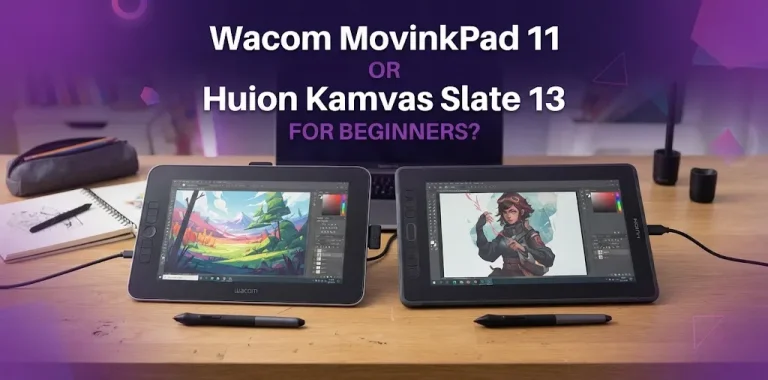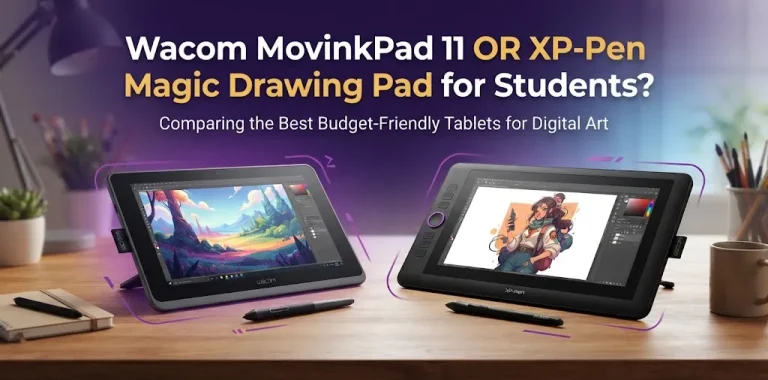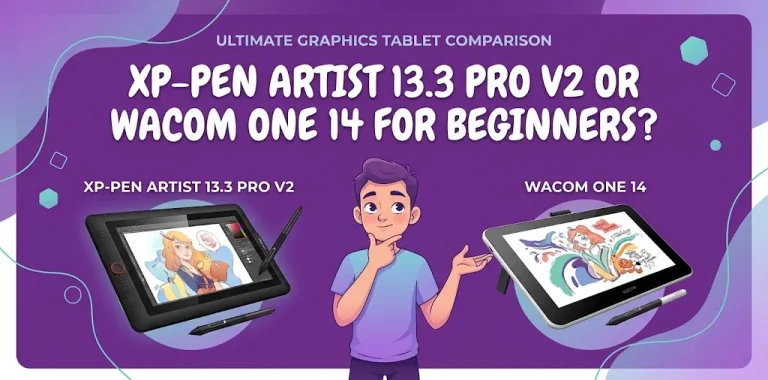
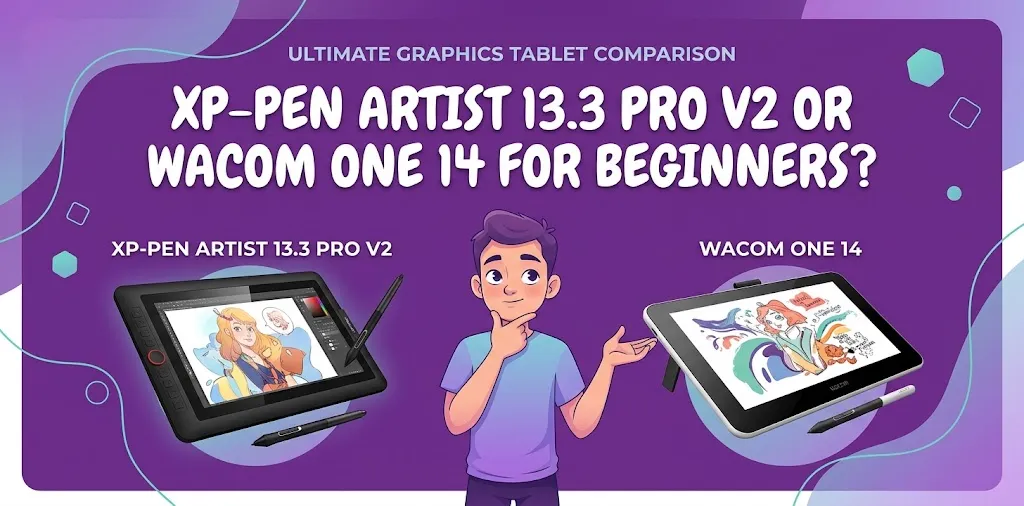
If you are choosing between the XP-Pen Artist 13.3 Pro V2 and Wacom One 14 for your first drawing display, the XP-Pen offers more shortcut controls, higher advertised pen pressure sensitivity, broader operating-system support, and a lower current list price. The Wacom One 14 has a slightly larger screen, a simple setup, and Wacom’s beginner-focused pen experience.
The two tablets are aimed at different kinds of beginners. The XP-Pen is better suited to someone who wants more control and features for the money, while the Wacom One 14 is appealing if simplicity and Wacom’s established pen technology matter more than extra controls.
XP-Pen Artist 13.3 Pro V2 vs. Wacom One 14 at a Glance
Both are pen displays, which means you draw directly on their screens while they remain connected to a computer. Neither is a standalone tablet like an iPad, so you will need a compatible Windows, Mac, or other supported computer.
| Feature | XP-Pen Artist 13.3 Pro V2 | Wacom One 14 |
|---|---|---|
| Screen size | 13.3 inches | 14 inches |
| Resolution | 1920 × 1080 | 1920 × 1080 |
| Display type | ADS-IPS | IPS |
| Color coverage | 99% sRGB | 98% sRGB |
| Full lamination | Yes | Yes |
| Anti-glare | Yes | Yes |
| Pen | X3 Pro Smart Chip Stylus | Wacom One Pen |
| Pressure sensitivity | 16,384 levels | 4,096 levels |
| Tilt | 60° | 60° |
| Shortcut controls | Red Dial + 8 keys | Pen button |
| Pen battery | Battery-free | Battery-free |
| Weight | About 1.139 kg without stand | About 26.5 oz / 0.75 kg |
| USB-C | Yes | Yes, with compatible DisplayPort Alt Mode |
| Current US manufacturer price checked | $209.99 sale price | $299.95 |
| Best fit | Feature-focused beginners | Simplicity-focused beginners |
Specifications and pricing can change, so the prices above reflect the manufacturer information checked for this comparison rather than a permanent retail price.
The Biggest Difference: Features vs. Simplicity
For a beginner, the most important difference is not the number of pressure levels or a small difference in screen size. It is how much control you want while working.
The Artist 13.3 Pro V2 is built around a more feature-heavy workflow. It has a physical red dial and eight customizable shortcut keys. You can assign common actions such as zooming, changing brush size, undoing, or switching tools without constantly reaching for the keyboard.
The Wacom One 14 takes a simpler approach. Its pen has a programmable button, but the display itself does not give you the same collection of built-in shortcut controls. Wacom positions the One 14 as a beginner and student pen display designed for drawing, sketching, photo editing, annotation, and similar creative work.
That makes the decision fairly straightforward:
- Choose XP-Pen if you like keyboard shortcuts, customizable controls, and getting more hardware features for your money.
- Choose Wacom if you prefer a clean, uncomplicated setup and do not need a built-in dial and shortcut keys.
XP-Pen Artist 13.3 Pro V2: What Beginners Get
The Artist 13.3 Pro V2 has a 13.3-inch Full HD display with a 1920 × 1080 resolution. It uses a fully laminated screen with an anti-glare film, which helps reduce the visible gap between the pen tip and the image underneath it.
Its X3 Pro Smart Chip Stylus is battery-free and supports 16,384 pressure levels and 60-degree tilt. XP-Pen also lists a 3-gram initial activation force, although some measurements are based on laboratory testing and can vary by environment.
For someone learning digital drawing, the physical controls may be more useful than the headline pressure number. Having a dial for zooming or brush adjustments can make software such as Photoshop, Krita, Clip Studio Paint, or similar programs easier to control without interrupting your drawing.
The tablet also supports Windows, macOS, ChromeOS, Linux, and certain Android configurations.
Where the XP-Pen Stands Out
The Artist 13.3 Pro V2 has several advantages for beginners who want room to grow:
- 8 customizable shortcut keys
- A physical red dial
- Battery-free X3 Pro stylus
- 16,384 pressure levels
- 60-degree tilt support
- Fully laminated display
- 99% sRGB coverage
- Foldable stand included
- Multiple connection cables included
- Support for several operating systems
- Current manufacturer sale price below the Wacom One 14
XP-Pen lists the Artist 13.3 Pro V2 at $209.99 on its US store page at the time of comparison.
Wacom One 14: What Beginners Get
The Wacom One 14 has a slightly larger 14-inch Full HD IPS display. It also uses a laminated screen and provides 98% sRGB color coverage.
Its battery-free Wacom One Pen supports 4,096 levels of pressure sensitivity and 60-degree tilt. The pen does not require charging, which is one less thing a beginner has to think about.
Wacom also emphasizes straightforward connectivity. A compatible computer with USB-C DisplayPort Alt Mode or Thunderbolt 3 or later can connect through USB-C. If your computer uses HDMI or lacks the required USB-C display capability, additional hardware may be required.
The Wacom One 14 is listed at $299.95 on Wacom’s US store at the time of comparison.
Where the Wacom One 14 Stands Out
The Wacom One 14 makes sense for beginners who value:
- A slightly larger 14-inch drawing area
- A lightweight design
- A simple battery-free pen
- 98% sRGB color coverage
- Low-parallax drawing
- A paper-like screen surface
- A straightforward beginner-focused experience
- Wacom’s established pen technology
- Bundled creative software and training offers
Wacom includes trials or offers for several creative and productivity applications with the One 14. Availability and terms can change, so buyers should check the current package when purchasing.
Which One Has the Better Drawing Experience?
For actual drawing, both can provide a good starting point because both let you draw directly on a Full HD screen with a battery-free stylus and tilt support.
The XP-Pen has the stronger specification sheet in several areas. Its pen offers 16,384 pressure levels compared with 4,096 on the Wacom One 14, and its display covers 99% sRGB compared with 98% on the Wacom.
However, beginners should not assume that 16,384 pressure levels automatically make the XP-Pen four times better to draw on. Pressure sensitivity is only one part of pen performance. Pen tracking, driver behavior, surface texture, calibration, software, and personal preference all affect how a tablet feels.
For a new artist, the difference is unlikely to determine whether you can learn digital art successfully.
The shortcut controls may have a bigger day-to-day impact.
Which Has the Better Screen?
The difference is smaller than the product names suggest.
The Wacom One 14 has a 14-inch 1920 × 1080 IPS display, while the XP-Pen has a 13.3-inch 1920 × 1080 display. Both have a 16:9 aspect ratio.
The Wacom gives you a little more physical screen space, which can be useful if you like larger working areas. The XP-Pen counters with 99% sRGB coverage, 250 cd/m² brightness, full lamination, and an anti-glare film.
Wacom lists 98% sRGB coverage and 285 nits of brightness for the One 14, along with an etched, directly bonded screen designed to provide a paper-like feel.
For beginner illustration, both screens are capable. If color work is important, neither model should be dismissed simply because it is marketed toward beginners.
Which Is Easier to Set Up?
The Wacom One 14 has an advantage if your computer already supports the required USB-C display connection. Wacom describes the connection as a single USB-C cable for compatible computers.
The catch is important: USB-C does not automatically mean one-cable connectivity on every computer. Your USB-C port needs to support DisplayPort Alt Mode, or you may need additional equipment.
The XP-Pen also supports USB-C and includes multiple connection options, including USB-C-to-C, USB-C-to-A, a USB-A extension, and a 3-in-1 cable.
For either tablet, check your computer’s ports before buying. This is one of the easiest beginner mistakes to avoid.
Which Is Better for Photoshop, Krita, and Clip Studio Paint?
Both tablets are designed to work with common creative software.
XP-Pen lists compatibility with applications including Photoshop, Illustrator, Krita, MediBang, FireAlpaca, Blender, Maya, and Clip Studio Paint.
Wacom’s One 14 is designed for drawing, photo editing, design, annotation, and other creative tasks.
For a beginner, software compatibility is therefore unlikely to be the deciding factor.
The better question is which hardware fits the way you use the software.
If you frequently change brush sizes, zoom, rotate your canvas, undo actions, or switch tools, the XP-Pen’s dial and shortcut keys can save repeated trips to the keyboard.
If you are comfortable using keyboard shortcuts, the simpler Wacom setup may be enough.
XP-Pen Artist 13.3 Pro V2 vs. Wacom One 14 for Different Beginners
If You Are Learning Digital Art From Scratch
The Wacom One 14 is a very reasonable choice if you want a simple drawing display from a well-established brand and do not care about having lots of physical controls.
The XP-Pen Artist 13.3 Pro V2 is the stronger value if you want more controls and a more feature-rich setup from the beginning.
If You Already Use Photoshop or Krita
The XP-Pen becomes more attractive because its dial and eight customizable keys can be mapped to frequently used commands.
For example, a beginner who constantly changes brush size could assign that function to the dial instead of repeatedly using keyboard shortcuts.
If You Want a Larger Drawing Area
The Wacom One 14 wins narrowly on screen size at 14 inches versus 13.3 inches.
The difference is not huge, but artists who prefer more physical space may appreciate it.
If You Want the Best Feature-to-Price Ratio
The XP-Pen Artist 13.3 Pro V2 is the clear choice based on the current manufacturer pricing checked for this article.
At $209.99 versus $299.95 for the Wacom One 14, the current gap is about $90.
That is a meaningful difference for a beginner who may also need to budget for software, a computer upgrade, a desk stand, or other accessories.
If Brand Experience Matters Most
The Wacom One 14 may be more appealing if you specifically want Wacom’s pen technology and prefer a simple product without a large number of physical controls.
Brand preference should not be the only reason to pay more, but it can reasonably influence a purchase when the basic capabilities are already sufficient.
Two Real-World Beginner Scenarios
Imagine a student who has never used a drawing tablet and wants to learn character illustration in Krita. They have a Windows laptop, a limited budget, and expect to practice several times a week.
In that situation, the XP-Pen Artist 13.3 Pro V2 makes a strong case. The lower current price leaves more money available for other needs, while the shortcut keys and dial provide controls that can become more useful as the student’s skills improve.
Now consider a beginner who mainly sketches casually, edits photos occasionally, and wants a straightforward display from Wacom. They already have a modern laptop with compatible USB-C display output and do not care about built-in shortcut controls.
For that person, the Wacom One 14 can be the cleaner choice. Its larger screen, simple pen, and beginner-focused design fit that use case well.
What Beginners Should Not Overvalue
Pressure Levels
Do not choose a drawing display solely because one advertises a much higher pressure number.
The XP-Pen’s 16,384 levels are impressive on paper, but 4,096 levels on the Wacom One 14 is already a substantial range for learning digital art.
Your drawing habits and the overall pen experience matter more than comparing the numbers in isolation.
Screen Size
A 0.7-inch diagonal difference is not enough by itself to make the Wacom automatically better.
Both displays use 1920 × 1080 resolution, so the XP-Pen still provides a Full HD workspace despite being smaller.
Professional-Sounding Product Names
The Artist 13.3 Pro V2 may sound more advanced because it belongs to XP-Pen’s Pro line, while the Wacom One is positioned as an entry-level product.
That does not mean beginners should automatically choose one based on branding.
Focus on how you will actually use the device.
Important Compatibility Check Before Buying
Both products require a computer connection, so neither replaces a laptop or desktop.
Before ordering, check:
- Your operating system.
- Your computer’s available USB ports.
- Whether your USB-C port supports video output.
- Whether your computer can supply the required power.
- Whether you have enough desk space.
- Whether your preferred art software supports the tablet.
- Whether you need HDMI or another connection method.
XP-Pen lists support for Windows, macOS, ChromeOS, Linux, and selected Android configurations.
Wacom lists Windows 10 or later, macOS 13 or later, and Chromebook support for the One 14. Wacom also specifically warns that computers without compatible USB-C display output may require additional equipment.
This makes the operating-system requirement especially important if you have an older computer.
Which One Should You Buy?
For most beginners trying to get the most hardware for their money, the XP-Pen Artist 13.3 Pro V2 is the better overall value.
It combines a Full HD laminated display, 99% sRGB coverage, a battery-free 16,384-level stylus, 60-degree tilt, eight shortcut keys, a red dial, and broad operating-system compatibility. Its current US manufacturer sale price is also substantially lower than the Wacom One 14’s listed price.
The Wacom One 14 is the better alternative for beginners who prioritize simplicity, a slightly larger display, Wacom’s pen experience, and a clean beginner-focused design. Its 14-inch screen, 98% sRGB coverage, battery-free pen, and straightforward workflow make it a capable first pen display.
| If your priority is… | Better choice |
|---|---|
| Lower current price | XP-Pen Artist 13.3 Pro V2 |
| More shortcut controls | XP-Pen Artist 13.3 Pro V2 |
| Higher advertised pressure sensitivity | XP-Pen Artist 13.3 Pro V2 |
| Slightly larger screen | Wacom One 14 |
| Simple beginner setup | Wacom One 14 |
| Wacom pen technology | Wacom One 14 |
| Broad operating-system support | XP-Pen Artist 13.3 Pro V2 |
| Best value for feature-focused beginners | XP-Pen Artist 13.3 Pro V2 |
Frequently Asked Questions
Is the XP-Pen Artist 13.3 Pro V2 good for a first drawing tablet?
Yes. Its 13.3-inch Full HD laminated display, battery-free stylus, shortcut keys, dial, and broad software compatibility make it well suited to beginners who want more controls as they learn digital art.
Is the Wacom One 14 easier for beginners than the XP-Pen?
It can be, especially for someone who wants a simple drawing display without many physical controls. Wacom positions the One 14 as a pen display for beginners and students, with a straightforward pen-focused design.
Do I need a computer for either the XP-Pen Artist 13.3 Pro V2 or Wacom One 14?
Yes. Both are pen displays rather than standalone drawing computers. They need to connect to a compatible computer, so check your computer’s operating system, USB-C video capability, and other connection requirements before buying.
Final Verdict
The XP-Pen Artist 13.3 Pro V2 is the better pick for most budget-conscious beginners who want more controls and room to grow, while the Wacom One 14 is a better fit for beginners who value simplicity and Wacom’s established pen experience.
If you are buying your first display tablet and both fit your computer, compare the current prices first. At the prices checked here, the XP-Pen leaves considerably more of your budget available for other creative equipment while giving you a strong set of features.