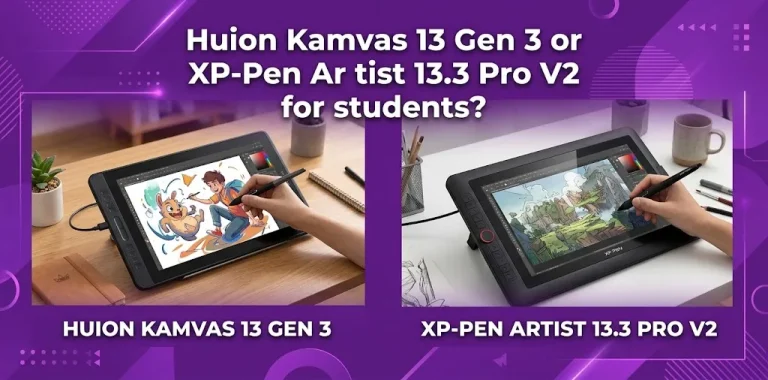
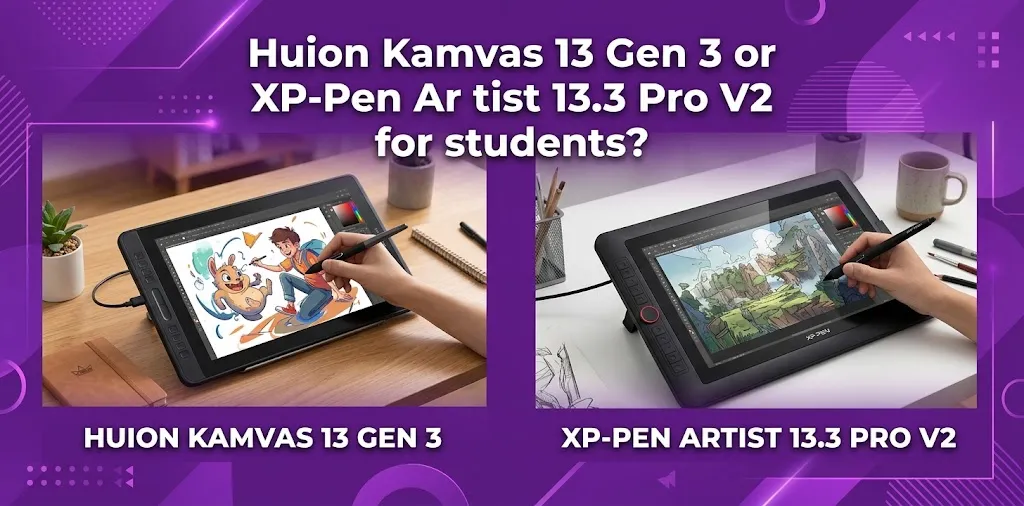
For most students, the Huion Kamvas 13 Gen 3 is the better overall choice because it is lighter, more portable, and offers flexible controls with two dial controllers. The XP-Pen Artist 13.3 Pro V2 is a stronger choice for students who want a brighter display, wider software and operating system compatibility, and a stand included in the package.
Both are 13.3-inch drawing displays designed for digital art, illustration, animation, design work, and beginner creative projects. Both have full HD resolution, laminated screens, battery-free pens, 16,384 pressure levels, and 60-degree tilt support. The real decision comes down to portability, controls, display preferences, compatibility, and what accessories you need as a student.
Quick Comparison for Students
| Feature | Huion Kamvas 13 Gen 3 | XP-Pen Artist 13.3 Pro V2 |
|---|---|---|
| Screen size | 13.3 inches | 13.3 inches |
| Resolution | 1920 × 1080 | 1920 × 1080 |
| Pen pressure | 16,384 levels | 16,384 levels |
| Tilt support | ±60° | 60° |
| Screen | Fully laminated IPS | Fully laminated display |
| Color coverage | 99% sRGB, 90% Adobe RGB | 99% sRGB, 89% Adobe RGB, 95% Display P3 |
| Weight | About 1.9 lb | About 2.5 lb |
| Controls | 5 programmable keys + 2 dials | 8 shortcut controls + Red Dial |
| Stand | Optional | Included in the package |
| ChromeOS support | Not listed on the current product specifications | Supported |
| Best for | Portability and flexible controls | Brighter display and broader compatibility |
The specifications show that these two tablets are much closer than their different designs suggest. A student should not choose based only on pressure sensitivity or screen size because those areas are nearly identical.
The Better Choice Depends on What Kind of Student You Are
Choose the Huion Kamvas 13 Gen 3 if portability matters most
The Huion weighs about 865 grams, while the XP-Pen weighs about 1.139 kilograms. That difference may not sound huge, but it can matter when you are carrying a laptop, charger, notebooks, and other school supplies in the same backpack.
The Huion is also physically smaller and thinner. Its lighter design makes more sense for a student who moves between home, class, a dorm room, or a library.
For example, a student studying illustration who regularly works in different locations may find the Huion easier to pack and set up.
Choose the XP-Pen Artist 13.3 Pro V2 if you want a more complete package
The XP-Pen includes a foldable stand in its package. That can be valuable for students because buying a display tablet is not the only expense. A comfortable drawing angle often matters during long assignments.
The package also includes the stylus, pen holder, replacement nibs, cables, glove, and cleaning cloth.
The Huion has an optional stand rather than a standard built-in package accessory. If you already have a suitable stand or prefer a flatter setup, this may not matter. But if you are building your first drawing setup, the included XP-Pen stand adds convenience.
Drawing Experience: Very Close, but the Controls Feel Different
Both tablets use modern battery-free styluses with 16,384 pressure levels and tilt support. For a student learning digital illustration, concept art, comic drawing, or photo editing, either one provides more than enough pen sensitivity.
The bigger difference is how you interact with shortcuts.
The Huion Kamvas 13 Gen 3 has five programmable press keys and two dial controllers. This gives you more than one physical control for tasks such as zooming, rotating, changing brush size, or scrolling through your workflow.
The XP-Pen Artist 13.3 Pro V2 uses shortcut controls with its Red Dial design. The dial can be useful for common actions like zooming or adjusting brush settings, while the other controls can be customized for your software.
For students who like using physical shortcuts instead of constantly reaching for a keyboard, the Huion’s two dials may be more appealing. For students who prefer a simpler, familiar control layout, the XP-Pen may feel more comfortable.
Screen Quality and Color: Which One Looks Better?
Both tablets have a 13.3-inch full HD display and full lamination. Full lamination helps reduce the visible gap between the pen tip and the image on the screen, which can make drawing feel more direct.
The XP-Pen lists a typical brightness of 250 cd/m². Huion lists about 220 nits on its current specifications. On paper, that gives the XP-Pen an advantage when working in a brighter room.
The Huion lists 99% sRGB coverage and 90% Adobe RGB coverage, while XP-Pen lists 99% sRGB, 89% Adobe RGB, and 95% Display P3 coverage. These numbers should not be treated as a simple winner in every situation because color specifications are measured in different color spaces.
For most student projects, both displays should offer enough color performance for digital drawing and design work. Students who need color-critical professional work should also remember that calibration and workflow matter, not just the percentage printed in a specification list.
The Huion Is Better for Backpack Portability
This is one of the clearest differences between the two.
The Huion Kamvas 13 Gen 3 is lighter and smaller, making it easier to carry with a student laptop. It can be the better choice if you:
- Work in a dorm and travel home regularly
- Move between classrooms or studios
- Like drawing at a library or shared workspace
- Need to keep your creative setup as compact as possible
The XP-Pen is still portable, but it is the larger and heavier device. Its included stand also adds value, but it gives you more to carry.
A student who mainly draws at a desk may not notice the weight difference very often. A student who carries the tablet several days a week probably will.
Laptop and Device Compatibility Can Change the Decision
Before buying either model, check your exact laptop or device ports.
The Huion Kamvas 13 Gen 3 supports Windows, macOS, Android, and Linux. The XP-Pen Artist 13.3 Pro V2 supports Windows, macOS, Android, ChromeOS, and Linux.
This makes the XP-Pen especially worth considering for students who use a Chromebook.
Do not assume every USB-C port will work
A USB-C port is not automatically enough for a drawing display. Some devices need USB-C with video output support, while other setups may require a different cable arrangement.
A computer’s USB-C port must support video output for a direct USB-C connection. Some Android setups also require compatible hardware and an external power adapter.
Before ordering either tablet, check:
- Your laptop model
- Available ports
- Whether USB-C supports video output
- Your operating system
- Whether you use ChromeOS
- Whether your Android device supports the required display connection
This is one of the easiest places for students to make a costly mistake. A tablet that looks compatible in a general product list may still require a specific type of port on your individual device.
Which One Is Easier for a Beginner?
Both are beginner-friendly because the screen lets you draw directly where you see the artwork. That can feel more natural than using a screenless graphics tablet.
The Huion may be easier for a beginner who wants more physical controls available directly on the tablet. The XP-Pen may be easier for a beginner who wants a complete package with a stand included and strong compatibility with different operating systems.
For a first-year art student, imagine two different situations:
- Student A has a Windows laptop and travels around campus every day. The lighter Huion may be the more practical option.
- Student B uses a Chromebook or wants a stand included immediately. The XP-Pen may provide fewer extra purchases and fewer compatibility concerns.
Neither choice is automatically better for every beginner.
What Students Should Consider Before Paying for Either Tablet
Your total budget, not just the tablet price
The cheaper tablet is not always the lower-cost setup. Consider whether you also need:
- A stand
- A power adapter
- Extra cables
- A protective case
- Replacement nibs
- A compatible laptop or adapter
The XP-Pen’s included foldable stand can reduce the number of accessories a new student needs to buy. The Huion’s lower weight may reduce the need for a large carrying solution.
Your workspace
If you have a permanent desk, the XP-Pen’s larger body and included stand may be less of a concern.
If you work on a small dorm desk, fold up your setup after every session, or share space with roommates, the lighter Huion can be easier to manage.
Your software
Students using common creative programs should verify driver and software compatibility before buying. Both tablets are designed to work with major creative applications used for digital illustration, photo editing, animation, and design.
Your school may also require specific software, so check that requirement before choosing a tablet.
Huion Kamvas 13 Gen 3: Best Reasons to Buy
The Huion is the stronger choice if your priorities are:
- A lighter tablet for carrying around campus
- A smaller physical footprint
- Two dial controllers
- Multiple customizable shortcut controls
- A high-quality laminated drawing surface
- Strong color coverage for everyday art and design work
Its biggest strength for students is balance. It offers modern pen performance without making portability an afterthought.
XP-Pen Artist 13.3 Pro V2: Best Reasons to Buy
The XP-Pen is the stronger choice if your priorities are:
- A brighter display specification
- ChromeOS support
- An included foldable stand
- Broad creative software compatibility
- A Red Dial-based shortcut workflow
- A more complete accessory package
It makes particular sense for students who are building their first desktop-style drawing setup and want fewer immediate accessory purchases.
So, Which One Should Most Students Buy?
For most students who value portability and flexibility, the Huion Kamvas 13 Gen 3 is the better overall pick. Its lighter weight makes it easier to carry, and its dual-dial control system gives you useful shortcuts without relying as heavily on a keyboard.
The XP-Pen Artist 13.3 Pro V2 is the better choice for students who want a brighter display, need ChromeOS compatibility, or prefer getting a foldable stand in the box.
The drawing performance is close enough that you should not make this decision based only on the pressure-level numbers. Both offer 16,384 pressure levels and tilt support, so your daily workflow and setup will matter more than chasing a specification advantage.
FAQs
Is the Huion Kamvas 13 Gen 3 good enough for art students?
Yes. Its full HD laminated display, 16,384 pressure levels, tilt support, and portable design make it suitable for digital illustration and many student creative projects. Its lighter weight can also be useful for students who carry their equipment between locations.
Does the XP-Pen Artist 13.3 Pro V2 work with a Chromebook?
Yes, the XP-Pen Artist 13.3 Pro V2 supports compatible ChromeOS devices. However, students should still check their specific Chromebook model and available ports before buying.
Is a 13.3-inch drawing tablet large enough for serious student work?
For most students, yes. A 13.3-inch pen display offers enough workspace for illustration, sketching, photo editing, and design projects while remaining much easier to transport than a larger display. Students who work mostly from one desk and prefer a larger canvas may eventually want a 16-inch or larger model.
Final Verdict
If you want one simple recommendation, choose the Huion Kamvas 13 Gen 3 for a lighter, more portable student setup with flexible physical controls. Choose the XP-Pen Artist 13.3 Pro V2 if the included stand, brighter screen, and wider operating system support fit your needs better.
Before placing an order, check your laptop’s exact ports and video-output support. That one step can prevent more problems than comparing another page of specifications.