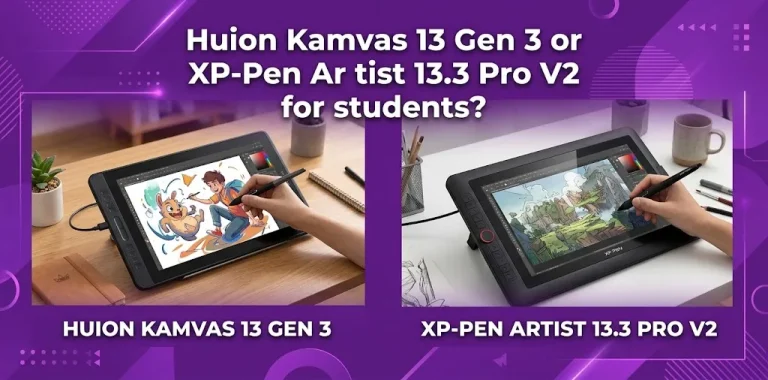
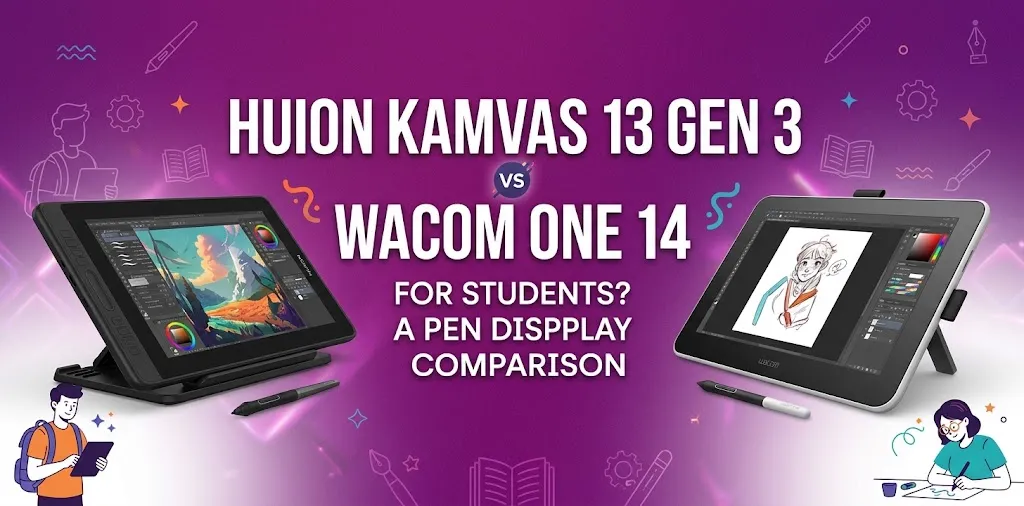
If you are a student choosing between the Huion Kamvas 13 Gen 3 and Wacom One 14, the Huion is the stronger choice for most art students who want more pen controls and better value. The Wacom One 14 is a good alternative if you prefer Wacom’s simpler setup, larger screen, lighter body, and established pen technology.
Huion Kamvas 13 Gen 3 vs. Wacom One 14 at a Glance
Both are screen-based drawing tablets, so you draw directly on the display instead of looking at a separate monitor. They are designed to work with a computer and support common creative software.
The biggest difference is that Huion gives students more built-in controls and higher reported pen-pressure sensitivity, while Wacom focuses on a simple, lightweight design and a straightforward drawing experience.
| Feature | Huion Kamvas 13 Gen 3 | Wacom One 14 |
|---|---|---|
| Display size | 13.3 inches | 14 inches |
| Resolution | 1920 × 1080 | 1920 × 1080 |
| Display type | IPS, 60Hz | IPS |
| Active area | 293.8 × 165.2 mm | 309 × 174 mm |
| Color coverage | Up to 99% sRGB | 98% sRGB |
| Pen pressure | 16,384 levels | 4,096 levels |
| Tilt support | ±60° | 60° |
| Shortcut controls | 5 keys, 2 dials, 2 function buttons | 2 pen buttons |
| Weight | 865 g | 750 g |
| Touch | No | No |
| Connection | USB-C options | Single-cable connection |
| Compatible systems | Windows, macOS, Android, Linux | Windows, Mac, ChromeOS |
| Best fit | Art students wanting features and value | Students wanting simplicity and portability |
Specifications can vary by region or product revision, so students should check the current product information before buying.
Which One Is Better for Students?
For most students, the Huion Kamvas 13 Gen 3 is the better overall value.
Its main advantage is the amount of drawing control you get. The Kamvas 13 Gen 3 uses a battery-free pen with high pressure sensitivity, tilt support, and programmable buttons and dials on the tablet.
The Wacom One 14 takes a different approach. It has a slightly larger active drawing area, weighs less, uses a battery-free pen, and is designed around a simple setup with minimal controls.
That makes the choice less about which tablet is universally better and more about how you plan to use it.
Choose the Huion Kamvas 13 Gen 3 if you:
- Are studying illustration, animation, graphic design, or digital painting
- Want physical shortcut controls
- Use keyboard shortcuts frequently and want additional controls close to your drawing hand
- Care about detailed pen-pressure control
- Want strong color coverage for school art projects
- Need compatibility beyond Windows and macOS
- Want more features without moving into a higher-priced professional display
Choose the Wacom One 14 if you:
- Prefer a simple drawing setup
- Want a slightly larger drawing area
- Carry your tablet between classes
- Use Windows, macOS, or ChromeOS
- Do not need many physical shortcut buttons
- Prefer a lighter device
- Are comfortable using keyboard shortcuts instead of tablet controls
Drawing Experience: Huion vs. Wacom
The pen is one of the most important parts of a student drawing tablet because you may use it for hours every week.
The Kamvas 13 Gen 3 uses a battery-free pen with high pressure sensitivity and ±60° tilt recognition. It is designed to provide detailed control over line thickness and brush pressure.
The Wacom One 14 also uses a battery-free pen with pressure sensitivity and tilt support.
Pressure-level numbers should not be treated as a direct measurement of real-world drawing quality. A higher number does not automatically mean that every student will feel a dramatic difference. Pen shape, calibration, pressure curves, surface texture, and software all affect the experience.
For a beginner, both can provide the basic pressure-sensitive control needed for digital drawing. The Huion simply offers more technical headroom and more physical controls.
Screen Size and Workspace
The Wacom One 14 has a small size advantage.
Its 14-inch display has a 309 × 174 mm active area, compared with the Huion’s 293.8 × 165.2 mm active area. Both use a 1920 × 1080 resolution.
In everyday use, the difference is not huge. Both give you a 16:9 Full HD workspace.
The Wacom’s slightly larger active area can be useful if you like making broad strokes or want a little more room for panels and artwork. The Huion’s 13.3-inch screen is still large enough for illustration, note-taking, photo editing, and many student design projects.
If your laptop already has a small screen, however, you may notice the difference more because you will be working with your drawing display and computer display at the same time.
Portability Matters More Than You Might Expect
Students often move between a dorm, classroom, library, and home. That makes size and weight worth considering.
The Wacom One 14 weighs about 750 grams, while the Huion Kamvas 13 Gen 3 weighs about 865 grams.
Neither is extremely heavy, but Wacom has the advantage here.
The Huion is still reasonably portable. For a student who mostly works at one desk, this difference is minor. For someone who carries a tablet to class several times a week, the lighter Wacom may be more convenient.
Shortcut Controls Can Make Student Work Faster
This is one of the clearest differences between the two tablets.
The Kamvas 13 Gen 3 includes programmable press keys, two dial controllers, and function-switch buttons.
You can assign controls to actions you use repeatedly, such as:
- Undo
- Redo
- Brush size
- Zoom
- Canvas rotation
- Switching tools
- Changing brush settings
The Wacom One 14 has two buttons on its standard pen, but the tablet itself does not provide the same collection of shortcut controls.
For students who use software such as Photoshop, Clip Studio Paint, or other drawing applications, Huion’s controls can reduce the need to reach for the keyboard.
That does not mean Wacom is difficult to use. It simply takes a more minimalist approach.
Display Quality and Color
Both tablets use Full HD IPS displays, so neither is a high-resolution 2.5K or 4K professional monitor.
The Huion has a 1920 × 1080 display and strong sRGB color coverage. The display is also designed for color accuracy suitable for creative work.
The Wacom One 14 also uses a 1920 × 1080 IPS display with broad sRGB coverage.
For most students, both are suitable for illustration, digital painting, basic graphic design, and coursework.
If your degree depends heavily on professional color matching, you may eventually want a more advanced color-managed monitor rather than expecting an entry-level pen display to handle every professional color-critical task.
Connectivity and Computer Compatibility
Compatibility is another area where your existing computer should guide the decision.
The Huion supports Windows, macOS, selected Android devices, and Linux distributions.
Wacom supports Windows, Mac, and ChromeOS.
This makes Huion more flexible on paper if you specifically use a supported Android or Linux setup.
However, compatibility is not the same as convenience. Before buying either model, check that your laptop has the required video and USB connections. A USB-C port does not always support video output, so the physical shape of a port alone is not enough to guarantee compatibility.
What About Price for Students?
Price can change with promotions, bundles, and retailers, so students should compare the current configuration rather than rely on an old review.
The Huion Kamvas 13 Gen 3 is generally positioned as a relatively affordable pen display with a strong set of features for its class.
The Wacom One 14 can also vary in price depending on the retailer and current promotions.
Rather than choosing based only on the sale price, compare the complete package:
- Tablet
- Pen
- Cables
- Stand
- Software offers
- Warranty
- Accessories you may need to purchase separately
A tablet that appears cheaper can become more expensive if you need to add a stand or other accessories.
Which Is Better for Different Types of Students?
The best choice changes depending on your course and workflow.
| Student type | Better choice | Why |
|---|---|---|
| Beginner digital artist | Huion | More controls and strong pen specifications |
| Illustration student | Huion | Shortcut controls are useful for frequent drawing |
| Animation student | Huion | Dials and buttons can speed up repetitive actions |
| Graphic design student | Either | Both offer Full HD displays and pressure-sensitive pens |
| Student using ChromeOS | Wacom | Official compatibility includes ChromeOS |
| Linux student | Huion | Better fit for supported Linux setups |
| Student who travels often | Wacom | Lighter body |
| Student who wants simple controls | Wacom | Minimal, straightforward design |
| Student on a tight budget | Huion | Strong feature set for the price |
| Student wanting more physical shortcuts | Huion | Built-in keys and dials |
Two Practical Student Scenarios
A first-year illustration student
Imagine a student starting an illustration program with a Windows laptop. They spend several hours each week drawing in Clip Studio Paint and frequently change brush size, zoom, and canvas rotation.
For this student, the Kamvas 13 Gen 3 makes more sense because its physical keys and dials can put frequently used controls directly on the tablet. The extra pen specifications are also useful, although the controls may have a bigger day-to-day impact than the pressure-level number.
A student who carries the tablet to class
Now consider a student who mainly sketches, edits images, and completes occasional digital assignments. They take the tablet between home, campus, and the library and do not want to configure lots of shortcut buttons.
The Wacom One 14 could be the better fit. It is lighter, has a slightly larger active area, and focuses on a straightforward drawing setup.
What Students Should Check Before Buying
The tablet itself is only one part of a digital-art setup.
Before ordering, check these points:
- Your laptop ports: Confirm that your computer can provide the required display signal and USB connection.
- Your operating system: Make sure your exact OS version is supported.
- Desk space: Measure your available workspace before choosing a pen display.
- Stand: Check whether a stand is included or sold separately.
- Software: Confirm that your preferred art program works with the tablet and operating system.
- Cable setup: A single-cable option does not mean every computer supports every connection method.
- Travel needs: Consider the tablet, cables, laptop, charger, and stand together rather than looking only at tablet weight.
- Warranty: Check the current warranty terms before purchasing.
Is the Huion Kamvas 13 Gen 3 Worth It for College?
For many college art students, yes.
The combination of a Full HD laminated display, strong color coverage, battery-free pen, high reported pressure sensitivity, and built-in shortcut controls makes it a feature-rich entry-level pen display.
Its biggest drawback is that it is not as light as the Wacom One 14, and some students may not care about having several physical controls.
If you are buying your first screen tablet and want room to grow without immediately moving into a professional-tier model, the Kamvas 13 Gen 3 is a compelling option.
Is the Wacom One 14 Worth It for College?
The Wacom One 14 makes sense for students who value simplicity and portability.
Its 14-inch Full HD IPS display, lighter body, and battery-free pen create a straightforward setup. It is also a strong option for students who use ChromeOS.
Its limited physical controls are the main trade-off. Students who rely heavily on shortcut buttons may find the Huion more convenient.
Final Verdict
If the question is simply Huion Kamvas 13 Gen 3 or Wacom One 14 for students, the Huion Kamvas 13 Gen 3 gets the overall recommendation for most art and design students. It offers more physical controls, a feature-rich pen system, strong color coverage, and good value.
Choose the Wacom One 14 instead if portability, simplicity, ChromeOS support, and a slightly larger drawing area matter more to you.
Before buying, check your laptop’s video output and USB requirements first. For a college student, compatibility and daily workflow matter more than choosing a tablet based on specification numbers alone.
Frequently Asked Questions
Is the Huion Kamvas 13 Gen 3 better than the Wacom One 14 for beginners?
For most beginners who want a lot of features, the Huion is the stronger value. Its programmable buttons and dials give new users more ways to customize their workflow, while the Wacom is better suited to someone who prefers a simpler setup.
Which tablet is easier to carry to college?
The Wacom One 14 is lighter at about 750 grams, compared with about 865 grams for the Huion Kamvas 13 Gen 3. The difference is not huge, but it can matter if you regularly carry the tablet between classes, home, and the library.
Do students need 16,384 pressure levels?
Not necessarily. The Huion’s 16,384 pressure levels provide a high level of reported pen sensitivity, but pressure-level numbers alone do not determine drawing quality. Pen feel, calibration, software, surface texture, and your own drawing style all matter, so beginners should not choose a tablet based only on this specification.