
Spending several thousand dollars on a single piece of creative gear is enough to make any studio lead or freelance artist pause. Yet, Wacom’s flagship creative pen display demands exactly that kind of commitment. In this Wacom Cintiq Pro 27 review: is it worth the price? we will dissect whether this massive 26.9-inch 4K screen actually pays for itself on your desk, or if you are paying a premium for a brand name while competitors close the gap.
For high-volume illustrators, 3D artists, and studios, a digital canvas isn’t a luxury—it is the engine of your business. Let’s evaluate if this device justifies its massive footprint and high cost.
The Reality Behind the “Pro” Premium
The Wacom Cintiq Pro 27 is not just a larger screen; it is a complete rebuild of what Wacom’s high-end displays used to be. For years, the older Cintiq Pro 24 and 32 models were criticized for their bulky, heat-producing bezels, audible fan noise, and 60Hz refresh rates. Wacom designed the Pro 27 to address those issues, shaving the bezels down to make a 27-inch screen fit in a footprint smaller than the previous 24-inch model.
A common misconception among newer digital artists is that a higher price simply buys “better drawing.” In truth, once you pass the $1,000 threshold, you are no longer paying for basic pen pressure or tracking accuracy. Instead, your money goes toward visual accuracy, performance speed, and workspace ergonomics. The Cintiq Pro 27 aims to earn its keep by targeting the exact points where standard pen displays fail: screen lag, color inconsistency, and physical discomfort during 10-hour workdays.

- Featuring 8,192 levels of pressure sensitivity, 3 side switches, and the ability to customize by swapping the included g…
- The beautiful 27” display features 4K UHD resolution (3840X2160 pixels), exceptional 10-bit color, 99% Adobe RGB and 98%…
- With the conveniently placed 8 customizable ExpressKeys, easy-to-adjust on-screen menus, and improved multi-touch and pe…
Actionable Review: How the Cintiq Pro 27 Performs
To evaluate whether this hardware can anchor a professional workflow, we must break down its performance across four critical areas: screen quality, the new pen experience, everyday ergonomics, and how it compares to the competition.
1. The Screen: 4K Meets 120Hz
The visual display is the primary reason to consider this model. While budget screens cap out at 60Hz, Wacom introduced a 120Hz refresh rate here. This change is immediate and obvious. When you drag the pen across the screen, the digital ink trails the physical nib with almost zero visual latency.
The 4K resolution (3840 x 2160) on a 26.9-inch panel provides enough screen real estate to keep complex software interfaces, timeline panels, and your canvas open simultaneously without clutter. Crucially for print and film pipelines, it offers 10-bit color, covering 99% of DCI-P3 and 99% of the Adobe RGB space.
Also Read: Best drawing display tablets under $300>>


2. The Pen: Pro Pen 3 Customization
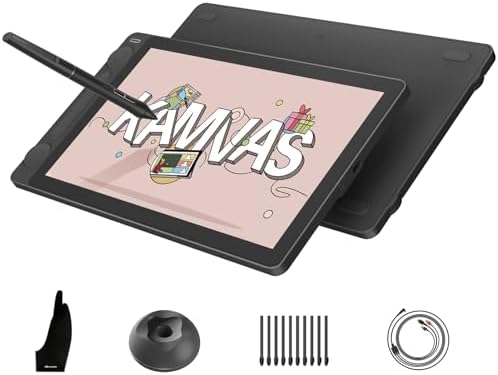
The included Pro Pen 3 is a departure from previous Wacom pens. Rather than forcing you to adapt to one shape, it arrives as a kit. You can adjust the weight, choose between a flared or straight grip, and decide whether you want the side buttons exposed or covered. Wacom also lowered the initial activation force (IAF) even further, meaning the screen registers the lightest touch without requiring physical pressure.
3. Ergonomics and Keys
Wacom relocated the ExpressKeys from the front face to the back grip of the left and right chassis edges. While this keeps the display slim, it requires a blind grip to use them, which takes some muscle memory to master.
Feature and Value Comparison
| Feature / Aspect | Wacom Cintiq Pro 27 | Xencelabs Pen Display 24 | Huion Kamvas Pro 24 (4K) |
| Current Estimated Price | ~$3,499 (Stand sold separately) | ~$1,899 (Stand included) | ~$1,299 (Foldable legs included) |
| Refresh Rate | 120Hz | 60Hz | 60Hz |
| Screen Resolution | 4K (3840 x 2160) | 4K (3840 x 2160) | 4K (3840 x 2160) |
| Color Accuracy | 99% DCI-P3 / 99% Adobe RGB | 99% Adobe RGB / 93% DCI-P3 | 98% Adobe RGB |
| Pen Technology | Pro Pen 3 (Highly customizable) | 3-Button & Thin Pens (Two included) | PenTech 3.0 |
| Physical ExpressKeys | Grip keys on the back | Wireless Quick Keys remote | None (No physical keys on unit) |
| Ideal For | High-end studios & animation houses | Independant pro illustrators | Budget-conscious professionals |
Insider Insights & Expensive Mistakes to Watch For
Buying a Cintiq Pro 27 involves more than just clicking add-to-cart; there are hidden costs and infrastructure needs you should calculate before purchasing.
- Account for the “Stand Tax”: Wacom does not ship the Cintiq Pro 27 with a built-in stand or desktop feet. You cannot comfortably use this 16-pound device flat on a desk. You must buy either Wacom’s proprietary Ergo Stand (an extra $500+) or a heavy-duty VESA-compliant monitor arm (like an Ergotron HX) capable of supporting its weight. Attempting to skip this will leave you with a highly expensive, unergonomic screen.
- Double-Check Your GPU: Running a 4K resolution screen at 120Hz while running demanding software like ZBrush, Maya, or Photoshop takes a toll on your computer. Make sure your computer can push 4K @ 120Hz over DisplayPort 1.4 or HDMI 2.1. Connecting this to an older laptop will force you to drop to 60Hz, neutralizing one of the screen’s main selling points.
- Touch-Input Caveats: Despite the price, Windows and macOS do not treat touch inputs like an iPad does. While Wacom’s multi-touch gestures have improved, they can still feel jumpy depending on your software. Many artists end up disabling touch input entirely to prevent accidental brushstrokes from their palms.
Frequently Asked Questions
Can I use a standard third-party monitor arm with the Cintiq Pro 27?
Yes. Unlike older Wacom models that required expensive proprietary adapters, the Pro 27 supports standard VESA 100x100mm mounts. Just ensure the monitor arm you choose can hold at least 16.1 lbs (7.3 kg) without drooping.
Is the 120Hz refresh rate really that different from 60Hz?
For high-speed work like sketching, inking, and 2D animation, yes. The high refresh rate significantly reduces visual lag, making the digital drawing experience feel closer to analog than any 60Hz panel can manage.
Why is there no stand included in the box?
Wacom assumes that at this price point, studios and professionals already have specific mounting preferences, such as articulating arms or studio desks. However, for individual buyers, this adds a major hidden cost to the overall purchase.
The Verdict
If you are a professional earning your living through daily high-tier digital production, the Wacom Cintiq Pro 27’s unmatched color calibration, 120Hz performance, and custom pen experience make it the best tool on the market—provided you have the budget for the required stand. For freelancers and hobbyists, however, the massive price gap over competitive 24-inch 4K alternatives is hard to ignore. If you want the absolute best and can write it off as a business expense, this is your next canvas.