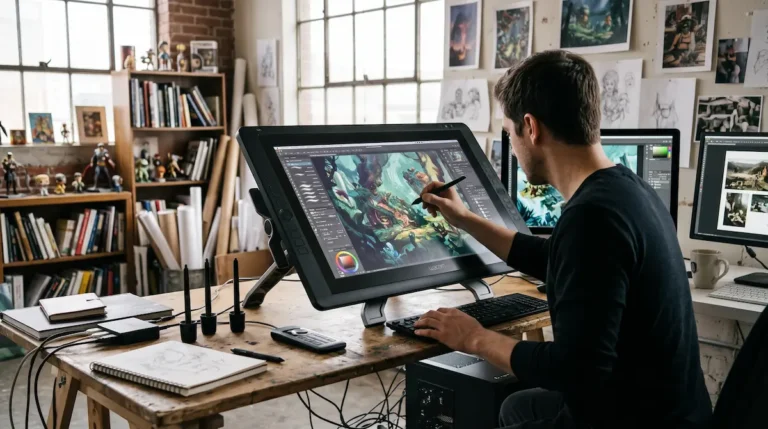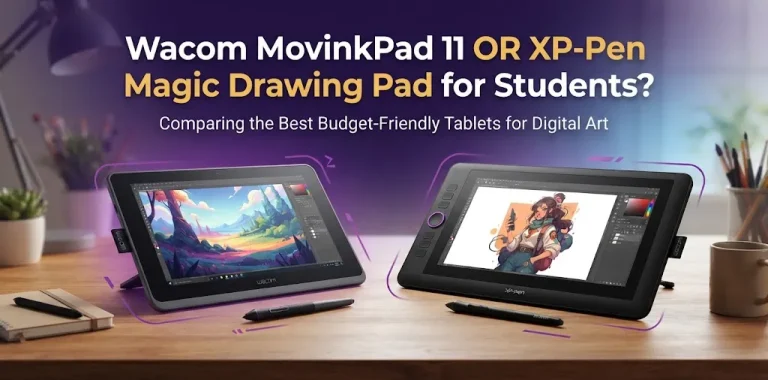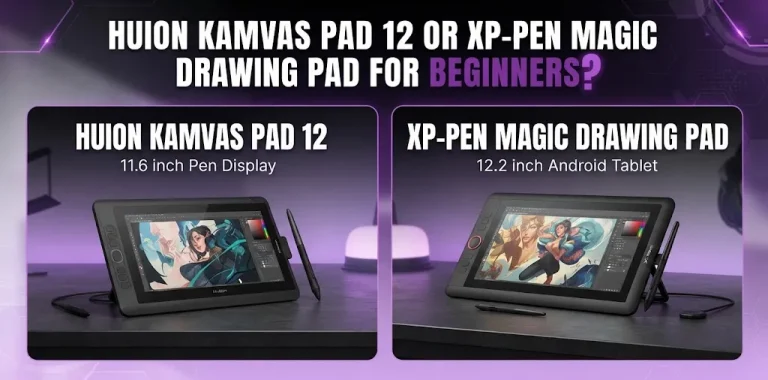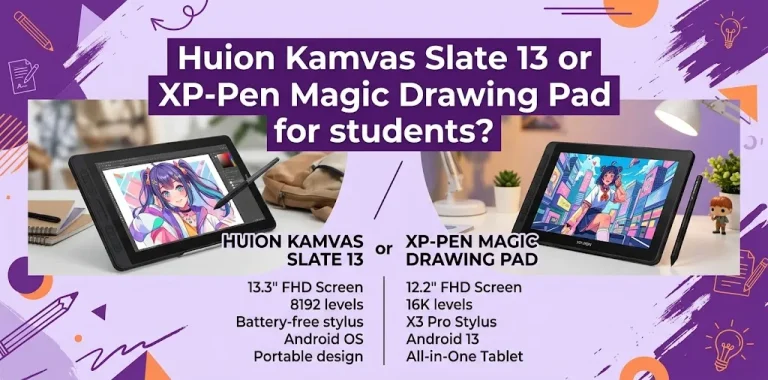
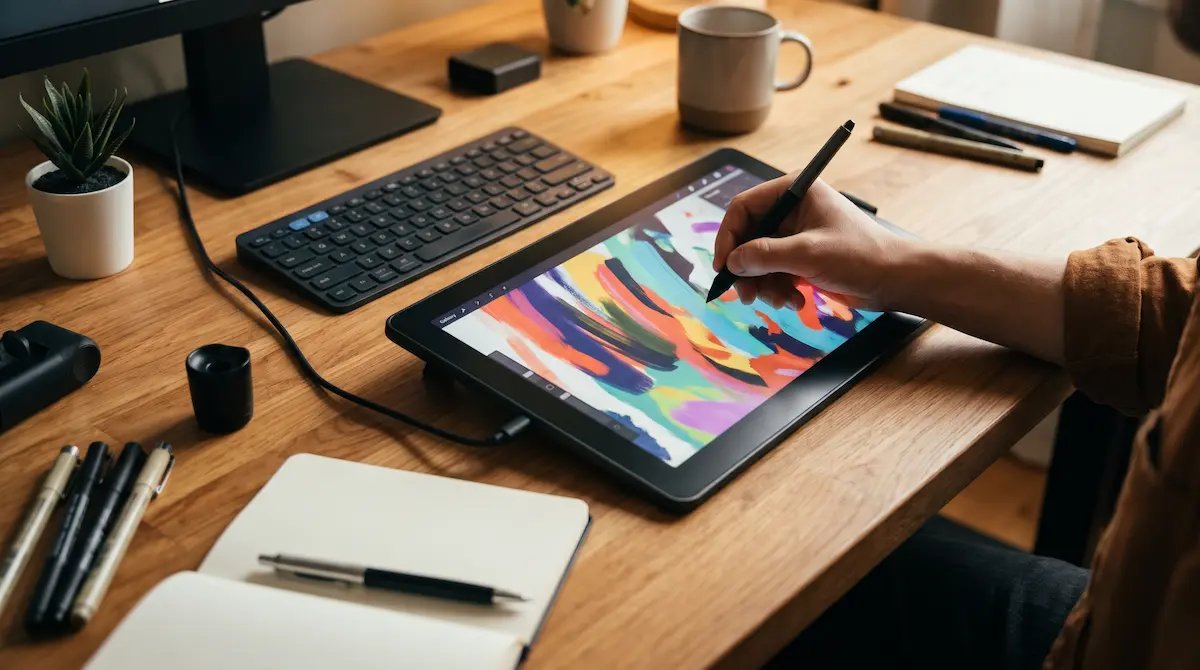
Staring at a blank screen while your hand draws on a plastic slab next to your keyboard requires an annoying amount of mental gymnastics. For years, breaking past that disconnected feeling meant spending $800 to $2,000 on high-end hardware. That barrier is gone. Today, finding the best drawing display tablets under $300 from Amazon is entirely realistic, whether you sketch as a weekend hobby or handle client commissions.
You do not have to settle for laggy tracking, washed-out displays, or hollow plastic pens. In this guide, you will learn how to identify screen-equipped tablets that deliver responsive pressure, accurate color calibration, and zero-gap tracking without blowing your setup budget.
What Actually Matters in a Sub-$300 Screen Tablet
Budget displays used to cut corners that ruined the drawing experience. Recent hardware upgrades across entry-level models have changed that dynamic. When shopping on Amazon at this price point, focus your attention on three critical technical specifications:
- Full Screen Lamination: Older screens left a visible air gap between the top protective glass and the actual LCD panel underneath. That gap creates parallax, where your digital brushstroke appears millimeters away from your actual stylus tip. Modern screens fuse the glass and LCD into a single unit, putting your pen tip flush against your strokes.
- Initial Activation Force (IAF): Pressure sensitivity numbers (8,192 vs. 16,384 levels) grab headlines, but IAF determines how the pen actually feels in your hand. High IAF requires you to press down hard before a stroke registers, leading to hand fatigue. Look for pens with an IAF under 3 grams.
- Color Space Coverage: Avoid displays that only advertise basic “NTSC” percentages. You want a display hitting at least 90% Adobe RGB or 120% sRGB so your finished artwork does not look muddy or dull when viewed on other monitors or mobile devices.
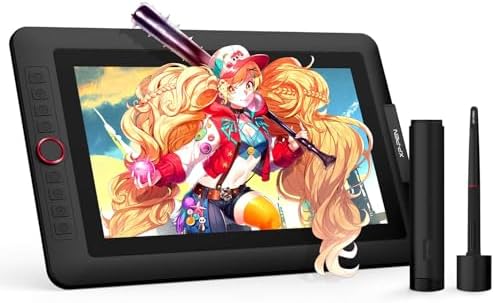
- PLEASE NOTE:XPPen Artist13.3 Pro drawing tablet Need to connect with computer,you need to use it with your computer or l…
- Drawing Tablet with Screen: Tilt Function- XPPen Artist 13.3 Pro supports up to 60 degrees of tilt function, so now you …
- Graphics Tablets: High Color Gamut- The 13.3 inch fully-laminated FHD Display pairs a superb color accuracy of 88% NTSC …

- Universal Compatibility: It’s compatible with Windows 7/8/10/11, Mac 10.10 or later, Linux. Compatible with Photoshop, I…
- 11.6 HD IPS display: Artist12 drawing tablet is the XP-PEN’s latest smallest 1920×1080 HD display paired with 72% NTSC(1…
- Battery-free stylus with a digital eraser at the end: XP-PEN advanced P06 passive pen was made for a traditional pencil-…
A common trap for beginner buyers is confusing a pen display with a standalone tablet. The tablets reviewed below are external monitors that run via connection to your PC, Mac, or compatible Android device; they do not have internal batteries, operating systems, or onboard processors.
Top Tested Display Tablets Under $300 on Amazon


Quick Comparison Matrix
| Tablet Model | Screen Size & Res | Stylus Tech & Levels | Color Gamut | Amazon Price Range | Best For |
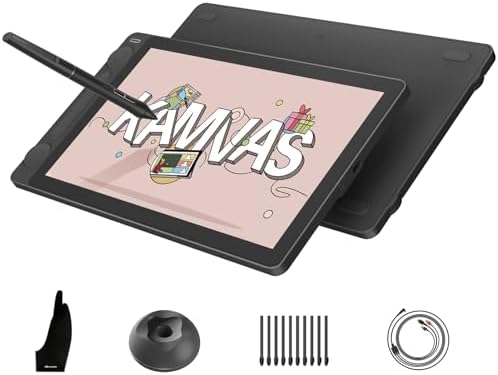
| Huion Kamvas 13 (Gen 3) | 13.3″ FHD (1920×1080) | PenTech 4.0 / 16K | 90% Adobe RGB | ~$249 – $279 | Best Overall Workspace |
| XP-Pen Artist 12 (3rd Gen) | 11.9″ FHD (1920×1080) | X4 Smart Chip / 16K | 97% Adobe RGB | ~$199 – $219 | Best Pen Precision |
| Ugee UE12 | 11.6″ FHD (1920×1080) | Battery-Free / 16K | 124% sRGB | ~$149 – $169 | Best Entry-Level Value |
| Veikk VK1200 V2 | 11.6″ FHD (1920×1080) | Battery-Free / 8K | 120% sRGB | ~$139 – $155 | Tightest Budget Pick |
1. Huion Kamvas 13 (Gen 3) – Best Overall Pen Display
The Huion Kamvas 13 (Gen 3) sits at the top of the sub-$300 bracket. Its 13.3-inch screen size provides enough breathing room for your toolbars in Clip Studio Paint or Photoshop without choking your actual canvas area.
Unlike many competitor models that rely on simple matte stick-on screen covers, the Kamvas 13 Gen 3 uses etched anti-glare glass. This eliminates glare under studio lights and delivers a consistent, textured tooth that feels like drawing on heavy Bristol paper. It features Huion’s PenTech 4.0 stylus, which drops activation force down to an effortless 2 grams. Five programmable buttons and dual scroll dials give you rapid zoom and brush-size control without touching your keyboard.
- Trade-off: The included 3-in-1 cable can create desktop clutter. If your laptop supports DisplayPort over USB-C, pick up a direct full-featured USB-C cable separately on Amazon.
2. XP-Pen Artist 12 (3rd Gen) – Class-Leading Pen Response
If fine line work, cross-hatching, and subtle inking matter most to you, the XP-Pen Artist 12 (3rd Gen) is hard to beat. XP-Pen’s X4 Smart Chip stylus registers input at a 3-gram activation force and tracks 16,384 levels of pressure with no noticeable line jitter.
The laminated 11.9-inch IPS screen covers 97% of the Adobe RGB color space, making it exceptionally color-rich for digital painting. The chassis houses eight customizable shortcut keys alongside dual dials, packing extensive control into a slim, backpack-friendly footprint.
- Trade-off: The 11.9-inch diagonal is compact. Complex software user interfaces can feel slightly dense, requiring you to collapse side panels while drawing.
3. Ugee UE12 – The Budget Sweet Spot
The Ugee UE12 offers an accessible entry point into screen tablets without cutting key hardware specs. It pairs an 11.6-inch fully laminated screen with full 1080p resolution and 124% sRGB color gamut coverage.
The stylus requires zero batteries or charging, supports natural 60-degree tilt detection, and provides 16,000 levels of pressure sensitivity. It also supports direct single-cable USB-C connectivity, which is uncommon on devices priced well under $200.
- Trade-off: The plastic casing feels lighter and less rigid than Huion’s or XP-Pen’s chassis.
Pro Setup Tips & Pitfalls to Avoid
Setting up a budget pen display can introduce small headaches if you overlook your host computer’s port options. Keep these rules in mind before ordering from Amazon:
- Inspect Your USB-C Ports: A standard USB-C port is not enough to carry video. Your laptop port must support DisplayPort Alternate Mode (DP Alt Mode) or Thunderbolt 3/4 to run the tablet over a single cable. If your computer lacks this, you must run the included 3-in-1 split cable into a separate HDMI port and standard USB ports.
- Purge Old Tablet Drivers First: Installing a Huion or XP-Pen driver while an old Wacom driver remains on your machine causes software conflicts, erratic cursor jumps, and broken pen pressure. Completely uninstall old tablet software, reboot, and install the latest driver directly from the manufacturer’s site before plugging your tablet into the machine.
- Keep Nib Wear in Mind: Textured matte films and etched glass give great drawing resistance, but they act like fine sandpaper on plastic nibs. Inspect your pen nib weekly. If a flat edge develops, replace it immediately to prevent scratching your screen coating.
Frequently Asked Questions
Can these sub-$300 display tablets work without a computer?
No. These models are dedicated input monitors, not standalone computers. You must connect them via USB/HDMI or USB-C to a PC, Mac, or compatible Android device running drawing software.
Is an 11.6-inch or 13.3-inch screen large enough for serious digital art?
Yes, especially if you balance your interface settings. A 13.3-inch screen strikes the best balance between desk footprint and canvas room, while an 11.6-inch display is ideal for tight workspaces or mobile setups.
Does higher pressure sensitivity (16K vs. 8K) make you draw better?
Not automatically. The real jump in quality comes from low initial activation force and zero parallax. Moving from 8,192 to 16,384 levels gives smoother pressure ramps on large dynamic brushes, but pen stability matters far more than raw numbers.
Check your computer’s video output ports, pick the display size that matches your desk space, and grab an etched or fully laminated screen to start drawing directly on your canvas today.
For a visual breakdown of how modern budget pen displays hold up under real studio workloads, check out the Top 5 Best Drawing Tablets Review. This video helps you evaluate active drawing surfaces, line consistency, and form factors before making a purchase.