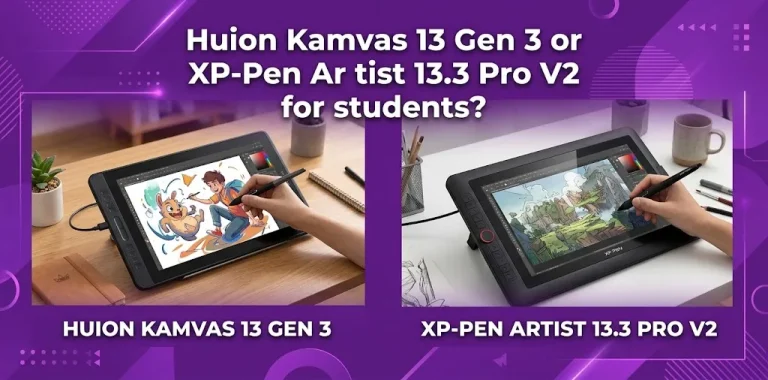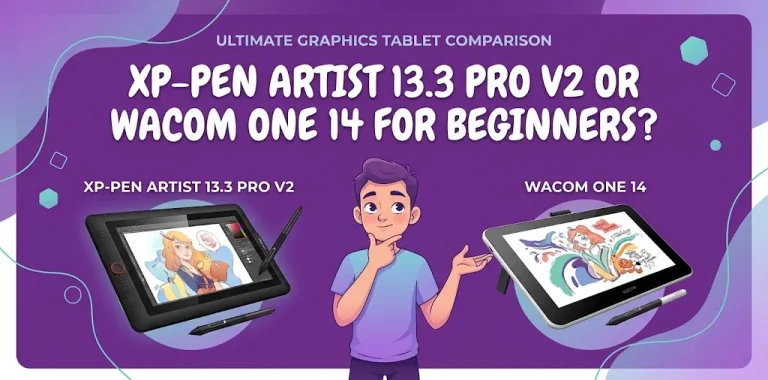
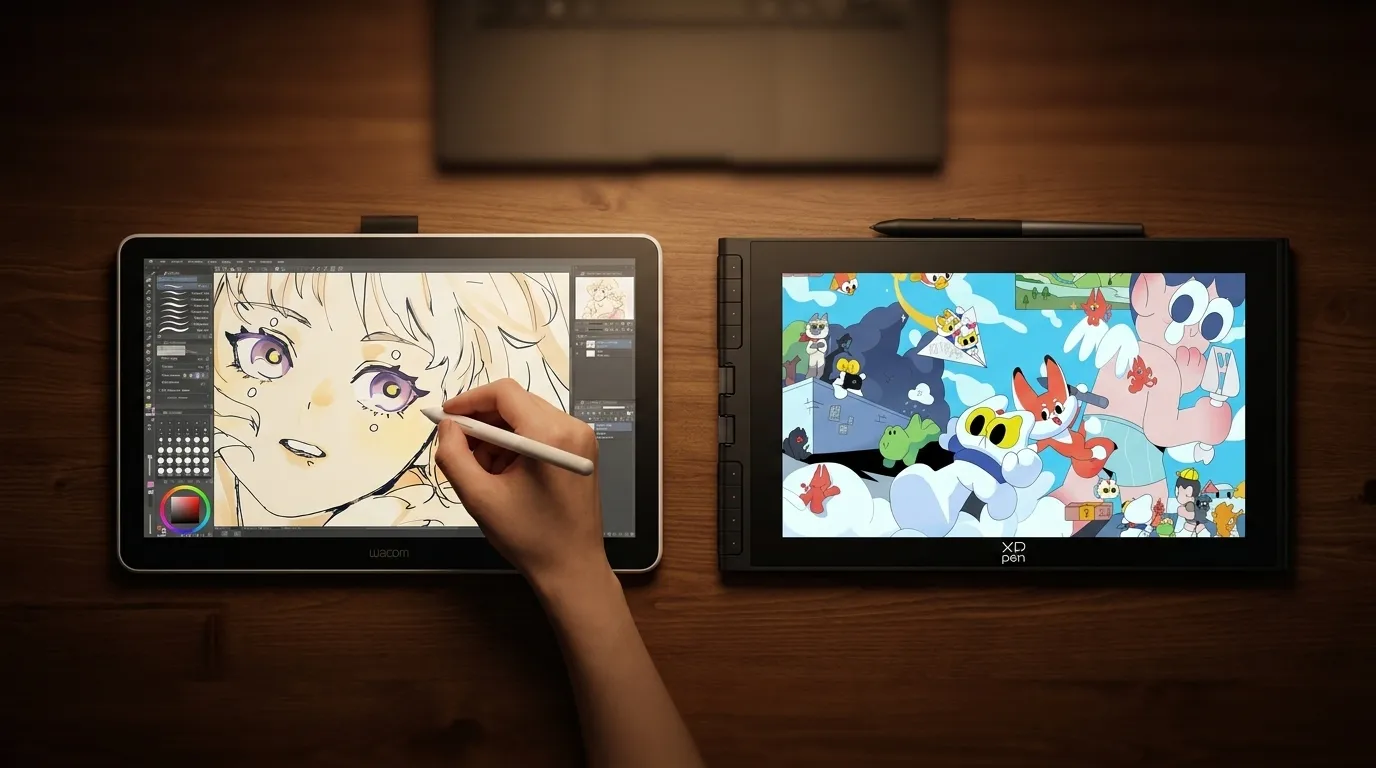
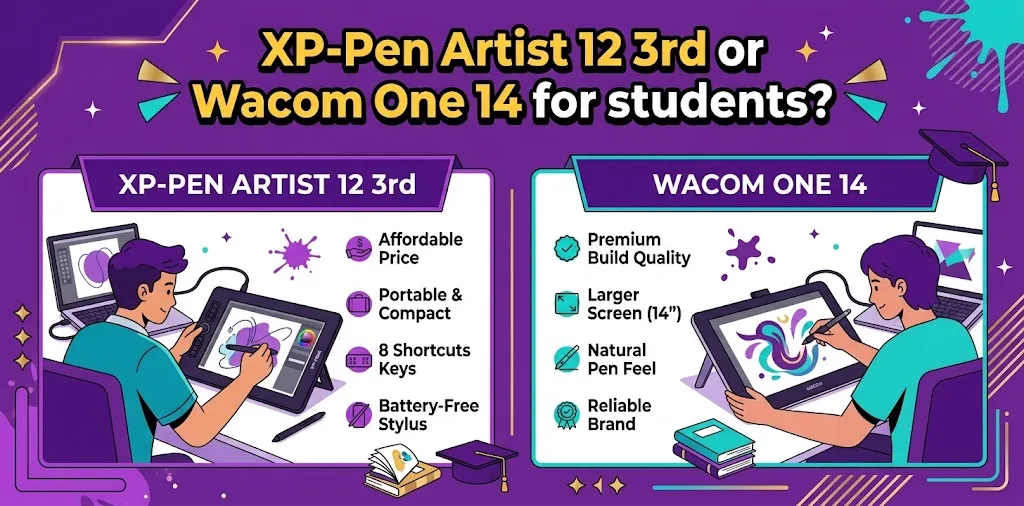
For most students, the XP-Pen Artist 12 3rd offers better value because it costs less and includes useful shortcut controls and a foldable stand. The Wacom One 14 is the better choice for students who want a larger drawing area, a bigger screen, and a simple, reliable drawing experience.
Both are pen displays, so they need to connect to another device to work. The better choice depends on your budget, the type of creative work you do, and how much screen space you need.
The main differences at a glance
| Feature | Wacom One 14 | XP-Pen Artist 12 3rd |
|---|---|---|
| Display size | 14 inches | 11.9 inches |
| Resolution | 1920 × 1080 | 1920 × 1080 |
| Active area | 12.2 × 6.9 inches | 10.4 × 5.9 inches |
| Pen pressure | Wacom One Pen | 16,384 levels |
| Shortcut controls | No built-in shortcut keys | X-Dial + 8 shortcut keys |
| Weight | About 750 g | About 719 g |
| Stand included | No dedicated stand included | Foldable stand included |
| Main compatibility | Windows, macOS, ChromeOS | Windows, macOS, Android, ChromeOS, Linux, Windows ARM |
| Official US price at the time of writing | $299.95 | About $199.99 promotional price, depending on the offer |
| Best for | Students who want more drawing space | Budget-conscious students who want more controls |
The Wacom One 14 has the larger display and a slightly larger working area. The XP-Pen Artist 12 3rd, however, gives students more built-in controls and accessories for less money.
Why the XP-Pen Artist 12 3rd is the better value for many students
The biggest advantage of the XP-Pen Artist 12 3rd is what you get for the money.
A student buying a first drawing display often needs to think about more than just the tablet. There may also be costs for software, a laptop, storage, and other school supplies. The lower price of the Artist 12 3rd can leave more room in the budget.
It also includes a foldable stand, while the Wacom One 14 is sold primarily with the display and pen. That matters because drawing directly on a flat desk for several hours can become uncomfortable.
The Artist 12 3rd also has:
- An X-Dial for quick adjustments
- Eight customizable shortcut buttons
- A 16K pressure-sensitive stylus
- A foldable stand
- USB-C and 3-in-1 cable options
- A glove, cleaning cloth, and replacement nibs in the package
These extras can make the XP-Pen easier to use right away without buying additional accessories.

- Ultra-Portable with Revolutionary X-Dial Wheels: Weighing only 1.58 lb with an 11.9″ portable screen, XP Pen drawing tab…
- Eye-Care Paper-Feel Display: AG etched glass provides paper-like texture, reducing 85% glare and resisting fingerprints….
- Magnetic X4 Pen with 16K Precision: The X4 chip drawing pen features 16,384 pressure levels and 60-degree tilt support, …
The shortcut controls are especially useful for beginners
Students often underestimate how helpful shortcut buttons can be.
For example, a digital art student using Clip Studio Paint might assign shortcuts to:
- Undo
- Redo
- Brush size
- Eraser
- Zoom
- Rotate canvas
Instead of reaching for the keyboard repeatedly, those controls can stay close to the drawing hand.
The X-Dial can also be useful for actions such as zooming or changing brush size. This is one area where the XP-Pen has a clear advantage over the Wacom One 14.
Why the Wacom One 14 may still be the better choice
The Wacom One 14 is not simply a more expensive alternative. Its main advantage is the larger workspace.
The 14-inch Full HD display provides more room for drawing, photo editing, handwriting, and design work. A student who spends several hours creating illustrations may appreciate having a larger canvas in front of them.
The larger screen can also make a difference when working with software panels.
For example, imagine a student using Adobe Photoshop on a smaller laptop:
- On an 11.9-inch pen display, the canvas and interface can feel tighter.
- On the 14-inch Wacom One, there is more physical room for drawing and viewing details.
The Wacom One 14 also uses an anti-glare, anti-fingerprint surface and a battery-free pen. Wacom markets the model toward beginners and students who want to draw, sketch, edit photos, take notes, and annotate.
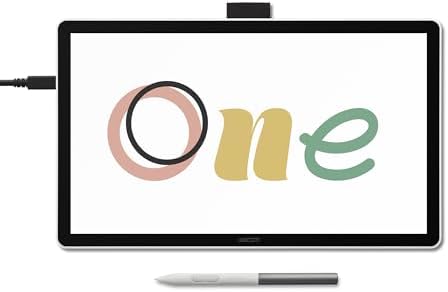
- BIGGER CANVAS, BETTER DETAIL: Redesigned with more drawing area, the laminated 14″ crisp IPS Full HD display offers gene…
- PRECISE, NATURAL FEEL: Draw with the control that made Wacom a favorite; the battery-free pen never needs charging and c…
- COMPLETE CREATIVE STARTER KIT: Includes trials of Clip Studio Paint Pro, Magma, Concepts & Foxit software, and Skillshar…
The larger screen is the real reason to choose Wacom
The most important reason to spend more on the Wacom One 14 is not a longer feature list.
It is the extra drawing space.
If you already know that a small display feels cramped, the larger 14-inch screen may improve your daily experience more than extra shortcut buttons would.
This can be especially helpful for:
- Illustration students
- Graphic design students
- Animation students
- Photo editing
- Digital painting
- Handwritten notes and annotations
Screen quality and drawing space
Both displays have a Full HD resolution of 1920 × 1080. Because the XP-Pen has the same resolution on a smaller screen, its pixels are packed into a smaller area.
That does not automatically make it the better screen for drawing.
The more important question is how much physical space you want.
The Wacom One 14 has a 14-inch display with an active area of about 12.2 × 6.9 inches. The XP-Pen Artist 12 3rd has an 11.9-inch display and an active area of about 10.4 × 5.9 inches.
For quick sketches and school projects, the smaller XP-Pen screen is usually enough.
For longer creative sessions, the Wacom’s larger workspace may feel more comfortable.
Pen performance: does 16K pressure sensitivity matter for students?
On paper, the XP-Pen Artist 12 3rd has the stronger specification. Its X4 Smart Chip Stylus supports 16,384 pressure levels and 60-degree tilt.
However, students should not buy based only on pressure-level numbers.
A beginner does not usually need 16,384 pressure levels to create good digital art. Brush control, software settings, practice, and the artist’s technique matter much more.
The practical difference is this:
- XP-Pen: More impressive pen specifications and tilt support
- Wacom: A simpler pen experience with Wacom’s established drawing hardware ecosystem
For a student learning digital art for the first time, either can be capable enough. The XP-Pen wins on specifications, but that does not mean every beginner will notice a major real-world difference.
Portability for school and college
Neither device is a standalone drawing tablet like an iPad. You need to consider the display and the device you connect it to.
The XP-Pen Artist 12 3rd weighs about 719 g, while the Wacom One 14 weighs about 750 g. The difference is small.
The more important portability factors are size and setup.
The XP-Pen is smaller and includes a foldable stand, which can make it easier to pack for a dorm, classroom, or library.
The Wacom is still portable, but its larger 14-inch display takes up more room.
A realistic student example
A college student who works in a dorm room and occasionally carries their setup to a studio class may prefer the XP-Pen. It takes up less space and already includes a stand.
A student who mostly works at one desk and spends long periods drawing may prefer the larger Wacom One 14, even though it costs more.
Software and device compatibility
Both models support common creative workflows, but you should always check your exact computer and ports before buying.
The Wacom One 14 supports Windows, macOS, and ChromeOS. Wacom also promotes a single-cable USB-C connection for compatible modern computers.
The XP-Pen Artist 12 3rd supports Windows, macOS, Android, ChromeOS, Linux, and Windows ARM, although compatibility requirements can vary by connection and device. XP-Pen lists support for popular creative applications such as Photoshop, Illustrator, Clip Studio Paint, Krita, GIMP, Blender, and other digital art programs.
Check your laptop before choosing either one
This is one of the most important steps for students.
Do not assume every USB-C port supports a one-cable display connection. Some computers have USB-C ports that handle data and charging but not video output.
Before buying, check:
- Your laptop model
- Available USB-C, HDMI, or other display ports
- Whether your USB-C port supports video output
- The manufacturer’s current compatibility information
The Artist 12 3rd offers a full-featured USB-C connection and also includes a 3-in-1 cable option, which may help students with different computer setups.
Which one is better for different types of students?
Best for art and illustration students: It depends on screen size vs. budget
Choose the Wacom One 14 if you want more room for digital painting and can afford the higher price.
Choose the XP-Pen Artist 12 3rd if you want to save money and value shortcut controls.
Best for graphic design students: Wacom One 14
Graphic design software often has panels, tools, layers, and menus visible at the same time. The larger screen can make the workflow feel less cramped.
However, the XP-Pen remains a good option if your budget is limited.
Best for animation students: XP-Pen Artist 12 3rd
The shortcut buttons and X-Dial can be useful when repeatedly moving through frames, changing tools, and adjusting the canvas.
Its included stand also adds value for students setting up a basic animation workspace.
Best for beginners: XP-Pen Artist 12 3rd
A first-time digital artist may get more for their money with the XP-Pen. It includes useful accessories, physical shortcut controls, and a lower purchase price.
Best for students who draw for hours: Wacom One 14
The larger drawing area may be worth paying for if you expect to use the display regularly for long creative sessions.
Price and long-term value
The Wacom One 14 is generally positioned as the more expensive option, while the XP-Pen Artist 12 3rd is often available at a lower price and may offer promotional discounts.
That difference is important for students.
The XP-Pen can provide a strong entry point into digital art without pushing the budget as high. The included stand also means you may not need to purchase one separately.
The Wacom may be better long-term if the larger screen directly improves how you work. A device that feels more comfortable can be worth the extra money if you plan to use it frequently for several years.
Do not choose based only on the cheaper price
A lower price is not always better value.
For example, spending less on the XP-Pen makes sense for a student who is still testing whether they enjoy digital art.
But a serious illustration student who already knows they prefer a larger drawing area may save money in the long run by buying the larger Wacom first instead of upgrading later.
The biggest mistakes students should avoid
Buying before checking laptop compatibility
This can create unnecessary problems with cables and display connections. Always check your computer’s ports and video-output support first.
Assuming a pen display works by itself
Both devices are displays that need to connect to a compatible device. They are not independent tablets with their own operating systems.
Focusing too much on pressure-level numbers
The XP-Pen’s 16K pressure specification sounds impressive, but beginners should not treat pressure levels as the only measure of drawing quality.
Ignoring screen size
A student may focus on price and later realize that the drawing area feels too small. Think about how you actually work and how long you draw.
Forgetting about desk space
The XP-Pen’s included stand is convenient, while the Wacom One 14 may require additional consideration for positioning and ergonomics. Measure your desk and think about your normal study setup.
My recommendation: which one should most students buy?
Choose the XP-Pen Artist 12 3rd if:
- Your budget is limited
- You want strong value for the money
- You want built-in shortcut buttons
- You like having a dial for quick controls
- You want a stand included
- You need broad operating-system compatibility
- This is your first pen display
Choose the Wacom One 14 if:
- You want a larger 14-inch drawing display
- You have room in your budget
- You draw for long periods
- You prefer more physical canvas space
- You work mainly at a desk
- You want a simple Wacom pen-display experience
For most students, I would choose the XP-Pen Artist 12 3rd because its lower price and included controls make it a stronger overall value. For students who care most about drawing space and plan to spend many hours creating art, the Wacom One 14 is worth serious consideration.
FAQ
Is the Wacom One 14 worth the extra money over the XP-Pen Artist 12 3rd?
It can be worth it if the larger 14-inch display is important to you. For students focused on value, shortcut controls, and included accessories, the XP-Pen usually offers more for less money.
Can I use either tablet without a computer?
The XP-Pen Artist 12 3rd needs to connect to another compatible device to run. The Wacom One 14 is also a pen display rather than a standalone computer, so check your device compatibility before purchasing.
Which is easier for a complete beginner?
The XP-Pen Artist 12 3rd is easier to recommend for a beginner on a budget because it includes a stand and physical shortcut controls. The Wacom One 14 may be easier to enjoy if you simply prefer a larger screen and want more room to draw.
Final verdict
The XP-Pen Artist 12 3rd is the better choice for most students, mainly because it offers strong features, shortcut controls, a stand, and a lower price. The Wacom One 14 is the better premium choice for students who value a larger drawing surface.
Before you buy, check your laptop’s connection support first. Then choose based on the one feature that will affect your daily work the most: more screen space or more value for your money.